Drive Screw
This program node is used for screwdriving. A screw program must be created in the Spin Dashboard before this node can be used. See the Spin Dashboard section for more information.
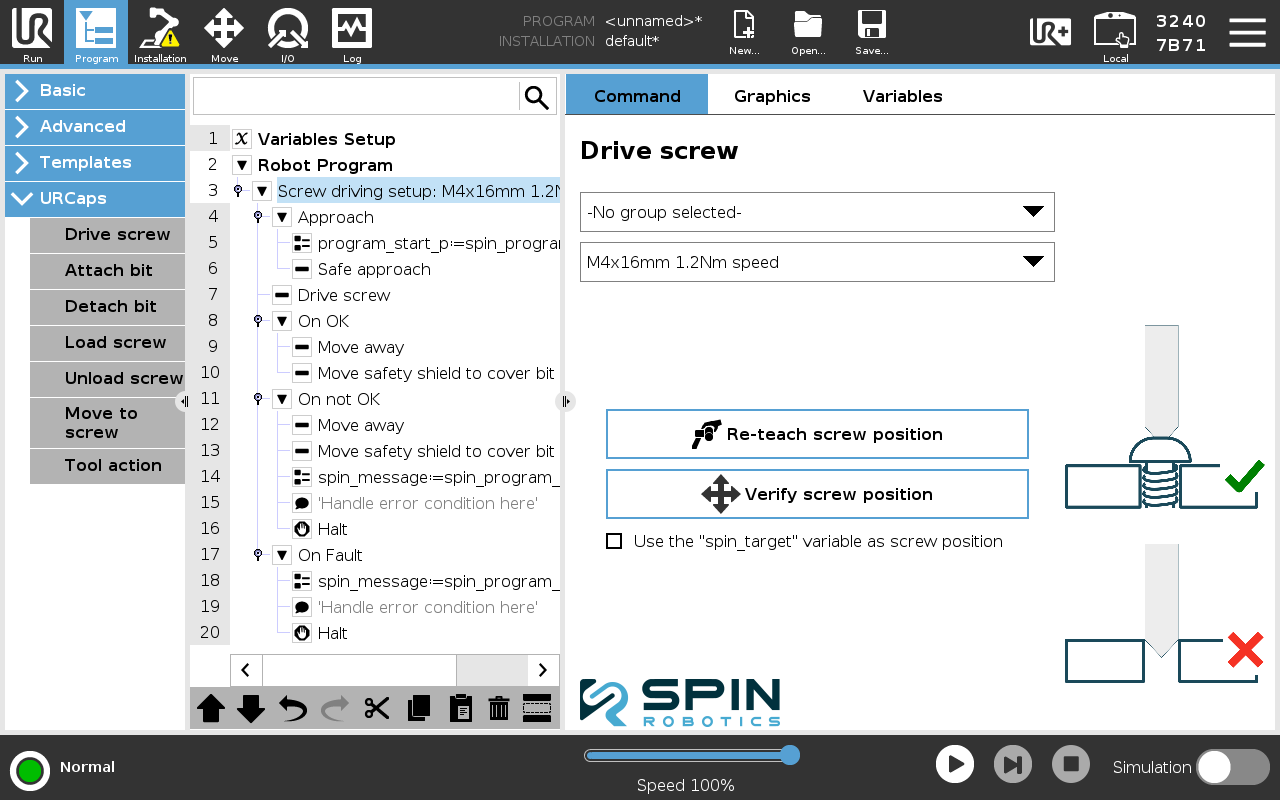
The Drive screw program node is created with Five sub-nodes, Approach, Drive screw, On OK, On not OK and On Fault. These sub-nodes are used to control the flow of the program depending on the result of the screwdriving operation. The nodes in the Approach branch are executed first and are the movements to the start position of the program, by default it contains a variable program_start_p that is the start position of the screw program and a Safe approach. The Safe approach node moves with a move j to above program_start_p and then does a slow move l down to program_start_p that stops and moves back if it detects a collision. The Drive screw node is the program is what is programmed on the Spin Dashboard. The nodes in the On OK sub-branch are executed if the screwdriving operation is successful. The On not OK-nodes are executed if the screwdriving operation is not successful. The On Fault-nodes are executed if the screwdriving operation fails due to a fault.
From Program/URCaps select a Drive screw program node.
From the drop down menu in the Screw driving setup sub-node select the screw program to use.
Optionally, filter the screw programs to view by selecting a group.
Add the desired program nodes to the Approach or leave them as they are.
Add the desired program nodes to the On OK, On not OK and On_Fault sub-branches, or leave them as they are.
Teach the screwdriving position by pressing the Teach screw position button. See Teaching a Position.
Optionally, verify the screwdriving position by pressing the Verify screw position button.
Alternatively, the screwdriving position can be set by assigning a pose value to the global spin_target variable before this program node is executed. In this case the you must tick the Use “spin_target” variable as screw position checkbox.